
Manage files in the DataHUB
The DataHUB allows to directly operate files and folders without using any other tools similar to what you are used to from your computer’s file explorer or finder.
Create a new file
Section titled “Create a new file”-
From the ARC panel, navigate to subdirectory of your ARC.
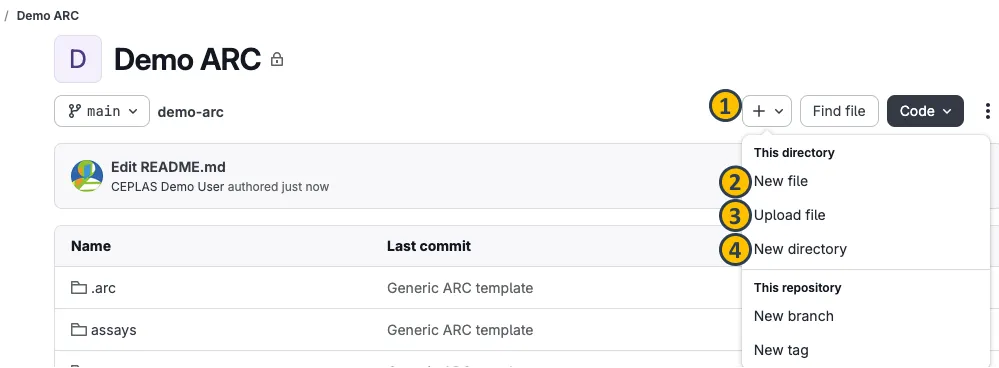
-
Click the plus sign next to your ARC’s name (1).
-
Select New file.
-
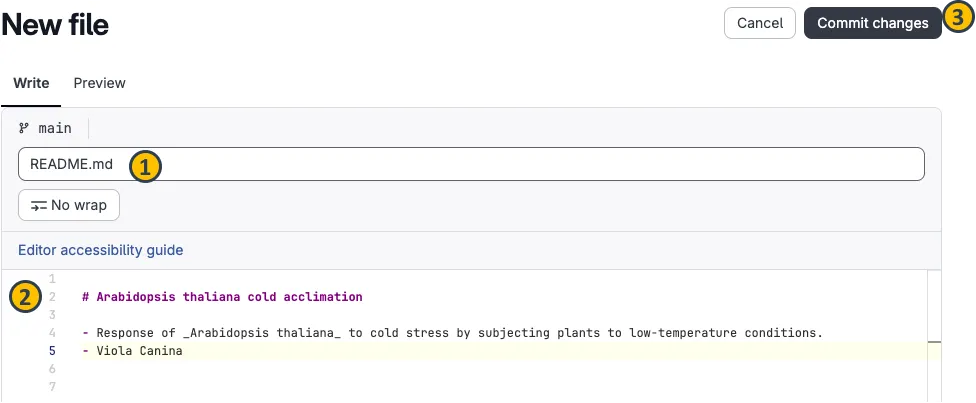
This will open a new dialog where you can create your file.
-
Name the file (e.g.
README.md) (1), -
add some text (2),
-
and commit the changes (3) with a commit message in the next dialog.
Add files or folders
Section titled “Add files or folders”
- From the ARC panel, navigate to subdirectory of your ARC.
- Click the plus sign next to your ARC’s name (1).
- Select to upload a file (3) or create a new directory (4) in the current directory.
- This will open a new menu where you can upload your file or choose a name for your new directory.
Replace, delete or download single files
Section titled “Replace, delete or download single files”-
Select a file (1) that you want to change or download

-
From the next view you can choose to replace (2) a file via upload, delete (3) or download (4) the file.

Download folders
Section titled “Download folders”
- From the ARC panel, navigate to subdirectory of your ARC that you would like to download
- From the
Codedropdown menu, you can… - …download the complete ARC including all data files (1) or
- …download only the currently displayed directory including all its files (2)